

About restreams
Restreams is a feature that helps to broadcast your live stream or playlists to external video platforms like YouTube, Facebook, Twitch, and any other platforms with RTMP/RTMPS access. Example: you use our Video Streaming for an educational site where you hold webinars. One day, you decide to expand your audience and start to broadcast on several more platforms (e.g., Facebook and YouTube). In this case, you must push a total of three live streams: the first one for your site through our Video Streaming, the second one for Facebook, and the third one for YouTube. This requires a powerful device for streaming because when you push three separate streams at the same time, it’s a high load on the processor. To optimize this process, we recommend using Restreams. In this case, you push only one stream into our Video Streaming and then route it to the necessary platforms. How it works. You get the credentials from the target platform (Facebook, YouTube, Twitch, etc.): stream URL and stream key. Then create a restream in the Gcore Customer Portal. When creating the restream, add credentials and choose the appropriate live stream. The setup is complete. You can begin the live stream; it will be broadcast on our player and the target platform. Here’s how retransmission looks schematically: 1 stream at the input, many RTMP restreams at the output:Supported restreaming combinations are limited to:
- RTMP → RTMP
- SRT → RTMP
Configure a restream
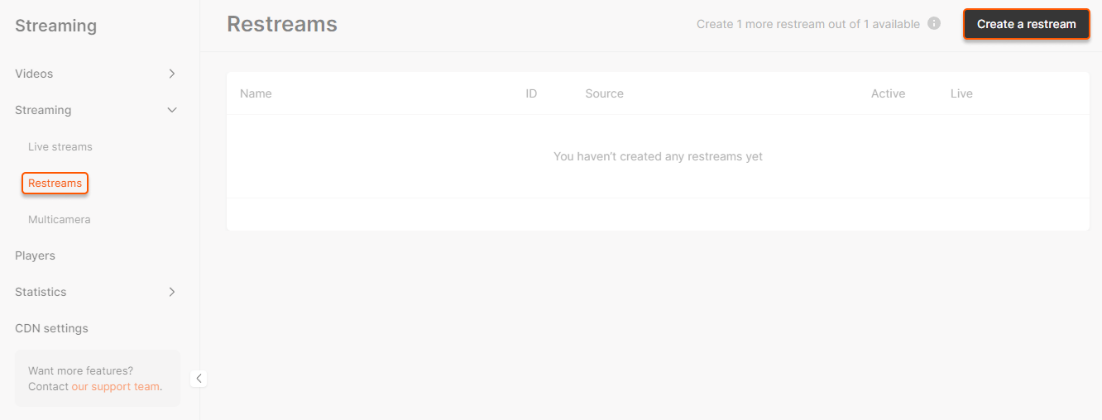
1. To enable the feature, send us a request via support@gcore.com or the chat window in the bottom-right corner of our website. Please specify your ID in the request, so that we can identify your account. You can find it on the main page in the Gcore Customer Portal.
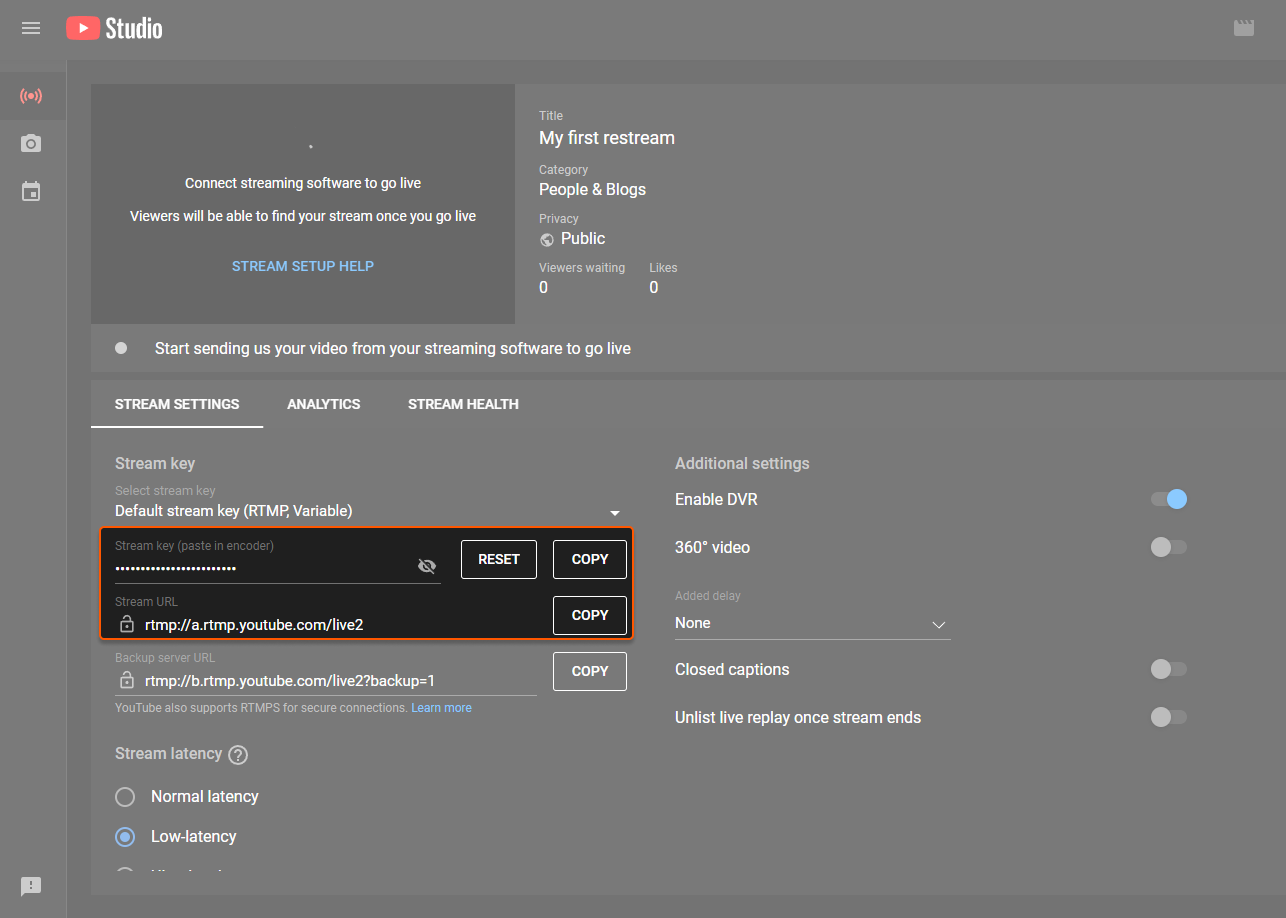
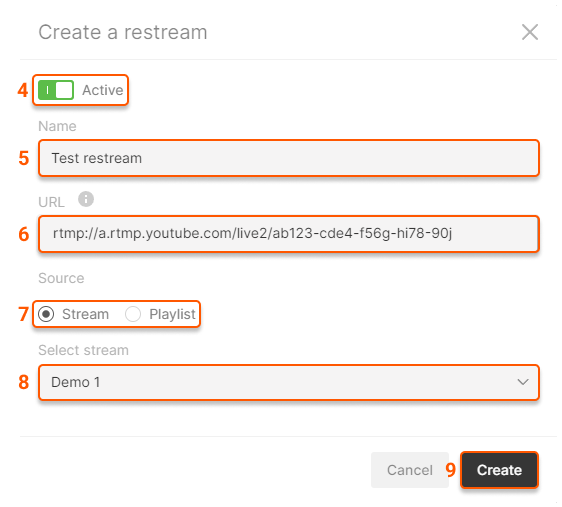

- rtmp://a.rtmp.youtube.com/live2 is the URL
- / is the connecting symbol
- ab123-cde4-f56g-hi78-90j is the KEY

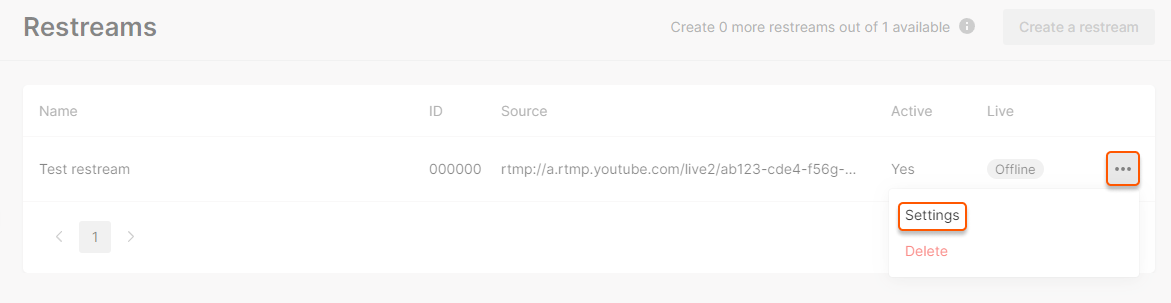
Restream Failover
Just like for regular streams, restreams have a failover algorithm too. If there is a problem getting the original stream, it will be re-requested multiple times. Restream retry algorithm:- Original stream is active
- If the original stream is unavailable and is down for more than ±3 seconds:
- The system will activate the retry mechanism.
- The system will attempt to re-request (PULL) the original stream for approximately 60 minutes.
- If original stream is back, the timer is reset to zero and the restream is restored.
- Otherwise the restream stops permanently. To resume it, you will have to activate it manually or via API.
Restream Troubleshooting
- Expired or invalid stream key/token
The RTMP connection is rejected if the event is marked as finished in the Facebook UI or if the token/stream key has been regenerated. - Keyframe interval exceeds 4 seconds
Facebook enforces a maximum GOP size of 4 seconds; exceeding this value results in rejection. - Unstable or insufficient bitrate
Significant bitrate drops may cause Facebook to terminate the stream. - Incorrect event configuration
Using an outdated or incorrect stream key leads to immediate connection failure.
- Confirm the stream key is active and the event is in Live or Preview state.
- Set keyframe interval to 2 seconds (recommended) or 4 seconds (maximum).
- Maintain a stable, constant bitrate.
- Update stream keys after Facebook regenerates them.
- Verify correct ingest server selection.
YouTube
Common Issues- Invalid stream key or inactive event
YouTube rejects connections when the key is incorrect or the event is not yet open. - Unsupported codec or profile
YouTube requires H.264 (Baseline/Main/High) and AAC audio. - Unstable input bitrate
Bitrate drops cause buffering and disconnects. - High keyframe interval
YouTube recommends a GOP of 2 seconds.
- Verify the stream key and event status before connecting.
- Use standard H.264 + AAC encoding.
- Keep keyframe interval at 2 seconds.
- Ensure encoder output is stable and avoids bitrate spikes.
- Enable low-latency only if supported reliably by your pipeline.
Twitch
Common Issues- Rate limiting or ingest overload
Frequent connection attempts may trigger temporary limits. - Excessive bitrate for account type
Twitch generally recommends a maximum of 6,000 Kbps for non-partners. - Unsupported codec settings
Twitch requires H.264 + AAC. - Disconnects due to unstable upstream
Twitch is sensitive to jitter and packet loss.
- Follow Twitch bitrate and profile recommendations.
- Use a 2-second keyframe interval.
- Select the closest ingest server.
- Reduce connection retries to avoid rate limiting.
- Use CBR and ensure stable network paths.
Other Social Platforms
Common Issues- Stream keys are frequently rotated.
- Strict GOP/keyframe interval requirements (often 2 seconds).
- Dynamic regional ingest endpoints.
- Some platforms accept only RTMP or specific RTMP variants.
- Validate the latest stream key before restreaming.
- Use a standard 2-second keyframe interval unless specified otherwise.
- Maintain consistent bitrate and resolution.
- Review platform-specific RTMP error codes for precise causes.